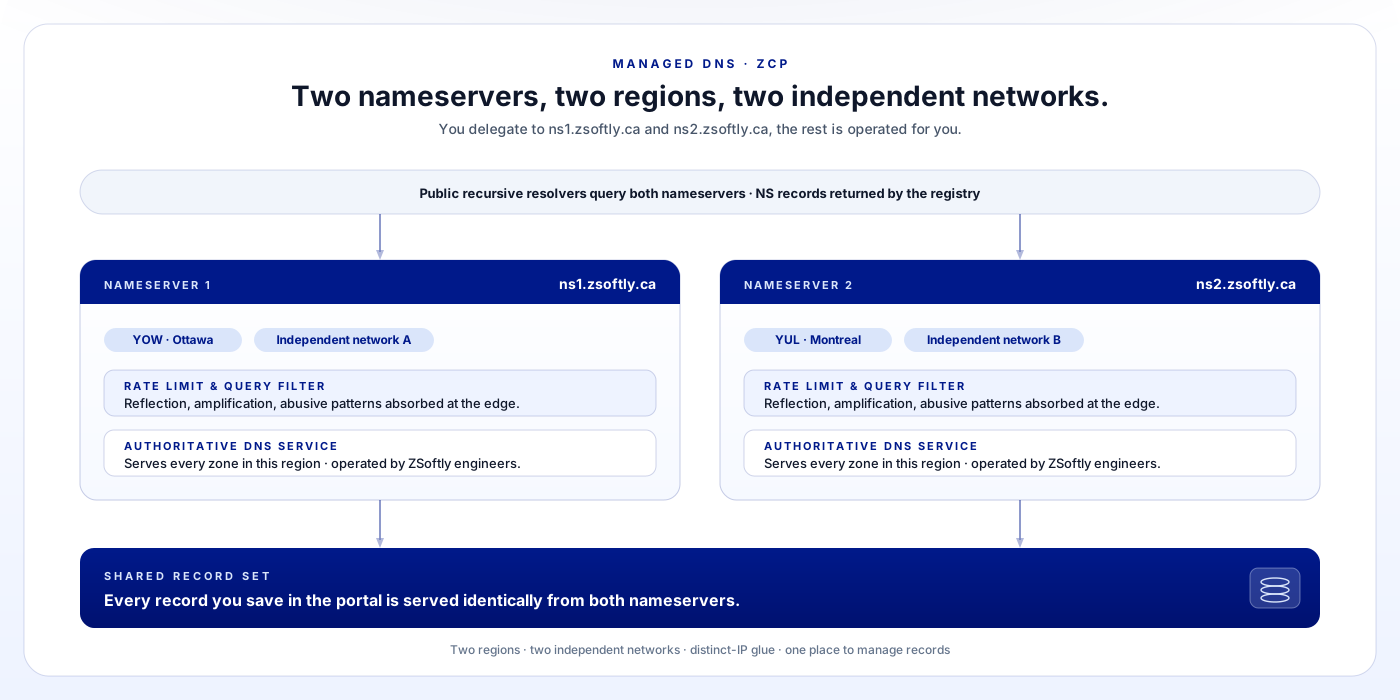
Every project on ZCP comes with managed DNS. Two authoritative nameservers in separate regions, on independent upstream networks, serve your zones. They share the same records behind the scenes, so a change saved once is served identically from both. You delegate your domain to ns1.zsoftly.ca and ns2.zsoftly.ca, then manage records from the portal or the API. There is no per-zone licence, no per-query charge, and no separate provider bill to manage. This post walks through service behavior, architecture, and setup for your first zone.
What you get
The managed DNS service is part of the ZCP platform. Every project includes it without a separate sign-up:
- Two authoritative nameservers,
ns1.zsoftly.caandns2.zsoftly.ca, hosted in two different ZCP regions on independent upstream networks. - Per-project zones with the standard record types:
A,AAAA,CNAME,MX,TXT,SRV,NS,CAA,PTR. - A self-serve management surface in the portal at cloud.zcp.zsoftly.ca, plus a REST API for automation.
- No per-query or per-zone fee while DNS is part of the platform service. The cost is bundled with the project.
- No vendor split. The same support contract covering your VMs covers your DNS.
The records you create are served from both nameservers within a few seconds of saving them. The propagation timeline across the public internet depends on record TTLs and the caches kept by resolvers in front of your users.
High availability and failover
The two ns*.zsoftly.ca addresses are not two virtual aliases on a single host. They are two independent authoritative services, in two ZCP regions, reachable through two independent upstream networks:
| Nameserver | Region | Upstream network |
|---|---|---|
ns1.zsoftly.ca | YOW · Ottawa | Network A |
ns2.zsoftly.ca | YUL · Montreal | Network B |
Both nameservers serve the same authoritative records. A change saved in the portal is picked up by both within seconds, so resolvers get a consistent answer regardless of which one they hit. If either nameserver, region, or upstream network is impaired, the other continues to answer queries on its own. Resolvers retry across the NS set automatically, so failover is transparent to your users.
The split across two upstream networks is the part worth dwelling on. A single nameserver, or two nameservers sharing one upstream provider, has a single point of failure at the network level: lose the provider’s transit and both lookups go dark together. Two providers in two cities removes shared-fate risk. Distinct-IP glue is also how .ca nameservers are registered with CIRA: each nameserver record corresponds to a separately-registered server with its own IP. It is the resilience baseline any well-run DNS service follows, regardless of TLD.
Security posture
A DNS-layer rate limiter and query filter sits in front of every authoritative server. Reflection and amplification probes, abusive query patterns, and obvious malformed traffic are absorbed there rather than reaching the authoritative service. Operational hardening is in place as a default, not an extra-cost tier: version disclosure suppressed, query logging enabled for our own analysis, and anycast-style behavior across the two regions through standard NS resolver retries.
The implementation runs on audited open-source software, the kind of platform a senior engineer would pick for this build. We name the behavior rather than the version pin so patching and upgrades stay decoupled from a CVE feed. If you have a specific compliance review needing the underlying-software disclosure, we will share it under NDA during scoping.
DNSSEC
DNSSEC signing is available on every zone we host. It is not on by default. You opt in per zone, either when you create the zone or after the fact. We generate and manage the signing key, sign the zone, and serve the signed answers from both nameservers. The remaining step is yours: copy the DS record we hand back into your domain’s settings at the registrar so the parent zone publishes it.
The keys are ECDSA P-256 with SHA-256 (DNSKEY algorithm 13, DS digest type 2). This is the modern DNSSEC algorithm pair: smaller signatures than RSA, fast verification, and broad support across the major recursive resolvers (Cloudflare 1.1.1.1, Google 8.8.8.8, Quad9, and the validating recursives most ISPs run). It is the one CIRA, Google Public DNS, and Cloudflare currently recommend for new zones.
The enable flow:
- Ask us to turn DNSSEC on for the zone, either through support or the portal, depending on what your account exposes today. We generate the key, sign the zone, and start serving signed responses from both nameservers.
- We send you the DS record. It has four fields: key tag, algorithm (13), digest type (2), and the digest hash. Some registrars take these as four separate inputs; others want a single line.
- You publish the DS at your registrar. The registrar forwards it to the parent registry, Verisign for
.com, CIRA for.ca, and so on. Once the parent has the DS, validating resolvers start enforcing the signature. - Verify.
dig +dnssec example.com SOA @1.1.1.1should return the SOA along with an RRSIG, and thead(authenticated data) flag should be set in the response header.
Until step 3 completes, the zone is signed at our authoritative servers but the parent has no record of the key, so no resolver validates it. This is the most common DNSSEC misconfiguration in the wild: half the work done, the chain of trust not yet closed. If the ad flag is not set after a day or so, the DS record at the registrar is the first place to look.
Key rotation, re-signing on schedule, and the on-platform side of any algorithm roll are managed by ZSoftly. Any event changing the DS record we issued you, such as a key roll or an algorithm change, is coordinated with you in advance, so the chain of trust never breaks unnoticed.
What you don’t get (yet)
- Recursive DNS. The nameservers above are authoritative-only. They answer for the zones we host and refuse everything else. If you need a recursive resolver for your VMs, use the resolver assigned to your VPC, or your own resolver of choice (
1.1.1.1,8.8.8.8, or a hosted resolver like NextDNS).
If this matters to a specific workload, raise it during scoping. We will not surprise you with the limit after delegation.
How to set up a zone
Three steps. The whole flow takes a few minutes once you have access to your domain registrar.
Step 1, Create the zone in the portal
From the portal at cloud.zcp.zsoftly.ca, open the left-hand nav and find DNS under the Networking section. The first time you load it, the list is empty:
No Domains Found
You haven’t added any domains yet. Add a domain to start managing DNS records.
Click Add a domain now. The Create DNS Domain form opens with three sections:
- Choose Project: select the project this zone should belong to. Every project gets its own DNS namespace. Records do not bleed across project boundaries.
- NameServers: these are read-only. Both fields show
ns1.zsoftly.caandns2.zsoftly.cawith a copy button next to each. You will need these values at your registrar in the next step. - Enter Domain Name: type the fully-qualified domain you are delegating, with no trailing dot.
example.comis correct.www.example.comis a record inside the zone, not the zone itself.
Click Create DNS at the bottom right. The zone shows up in the Manage DNS list immediately.
Step 2, Delegate the domain at your registrar
This is the step the portal cannot do for you, because your registrar is a separate vendor and only you have the credentials.
Sign in to wherever you bought the domain: Namecheap, Cloudflare Registrar, GoDaddy, Google Domains (via Squarespace now), CIRA-accredited registrars for .ca, etc. Find the “nameservers” setting for your domain. The exact label varies by registrar. Common examples:
- Namecheap: Domain List → Manage → Nameservers → “Custom DNS”.
- Cloudflare Registrar: Registrar → your domain → Nameservers → “Custom Nameservers”.
- GoDaddy: DNS → Nameservers → “Change” → “I’ll use my own nameservers”.
Set the two nameservers to:
ns1.zsoftly.ca
ns2.zsoftly.ca
Save. The change is queued at the registrar and pushed to the relevant TLD registry. .com and .net go to Verisign, .ca goes to CIRA, and so on. From there it propagates out to caching resolvers across the internet.
The portal note is accurate: propagation takes up to 24 hours. In practice most resolvers see the new delegation within a few minutes to a few hours, but some long-TTL caches will hold the old answer for the rest of the day.
Step 3, Add your records
Back in the portal, open the zone created from the Manage DNS list. The record editor supports the standard set:
Arecords to point a name at an IPv4 address, most commonly the public IP of a VM or load balancer in your project.AAAAfor IPv6.CNAMEto alias one name to another. The right choice when you wantwww.example.comto followexample.com, or to point at an S3-compatible bucket endpoint.MXfor email delivery, with a priority and a hostname. Most customers run mail through a SaaS provider (Google Workspace, Microsoft 365, Fastmail, etc.) and copy the provider’sMXrecords here.TXTfor SPF, DKIM, DMARC, domain verification, and any other “prove you own this domain” use case.SRV,NS,CAA,PTRfor the less-common but still-supported types.
For each record, set the TTL (Time To Live) deliberately. A low TTL (300 seconds, say) means changes propagate quickly but resolvers re-query you more often. A high TTL (3600 or 86400) lowers query volume but slows down the next change. Most production records sit between 300 and 3600 seconds. The portal defaults are sensible. Override them only with a reason.
A worked example: pointing example.com at a ZCP VM
End-to-end. Assume:
- You bought
example.comat Namecheap. - You have a project on ZCP named
prod. - You have a VM in this project with the public IP
203.0.113.10.
The steps:
-
In the portal, Networking → DNS → Add a Domain Now. Choose project
prod, typeexample.com, click Create DNS. -
Open the zone. Add:
Type Name Value TTL A@(apex)203.0.113.103600 Awww203.0.113.103600 CNAMEapiexample.com.3600 MX@(apex)10 mail.example.com.3600 TXT@(apex)v=spf1 include:_spf.google.com ~all3600 Adjust the values for your actual email provider and any SPF/DKIM/DMARC you need.
-
At Namecheap: Domain List → Manage → “Custom DNS”, set the two nameservers to
ns1.zsoftly.caandns2.zsoftly.ca, save. -
Wait. Use
digor whatsmydns.net to watch the propagation:dig @ns1.zsoftly.ca example.com A +short # → 203.0.113.10 (immediately, from the authoritative source) dig example.com A +short # → 203.0.113.10 (once your local resolver picks up the new delegation)The first command queries our nameserver directly. The second queries whatever resolver your machine is configured to use. The first answers as soon as you save the record in step 2. The second answers as soon as the delegation in step 3 reaches your local resolver.
How DNS fits with the other ZCP services
The DNS service is one of the platform primitives included with every project, alongside VPC networking, object storage, block storage, load balancers, and IAM. They are designed to compose:
- Load balancers, point an
Arecord at the public IP a load balancer assigns, and you have a domain backed by a pool of VMs. Update the pool without touching DNS. - Object storage, point a
CNAMEat the S3-compatible endpoint for a bucket, and you have a custom-domain static site. - Kubernetes, managed Kubernetes ingresses get an assigned IP. This IP goes into an
Arecord in your zone. - TLS certificates, domain-validation challenges (HTTP-01 and DNS-01) work against records in your zone. ACME clients like Caddy and cert-manager request and renew certificates against this DNS service like any other authoritative provider.
The pattern is the same one we operate for our own platform: same authoritative model, same rate-limit posture, same operational discipline. Customer zones live in the same managed surface running everything else on the cluster.
Caveats and limits
A few honest things to flag:
- Authoritative-only, not recursive. Don’t put
ns1.zsoftly.cain/etc/resolv.conf. It will refuse the query because it is not a recursive resolver. Use your VPC’s assigned resolver or a public recursive (1.1.1.1,8.8.8.8) for this. - DNSSEC requires a DS publication at your registrar. We sign and serve. You (or the registrar, on your behalf) publish the DS into the parent zone. Until the DS is in place, validating resolvers see the same answers as before, unsigned to them. The full enable flow is in the DNSSEC section above.
- Rate limits apply per-source at the DNS-firewall layer. Normal usage never approaches them. If you build something generating thousands of queries per second from a single source (a synthetic monitor at high frequency, a misconfigured client in a loop), expect a slice of those queries to be dropped. Talk to us if you need a per-zone quota raised for legitimate reasons.
- Propagation timing is set by the public internet, not us. We serve the new record in seconds. The 24-hour figure in the portal note exists because some downstream resolvers cache aggressively, and it covers the worst case.
Where to go from here
The DNS service is part of every project, so there is nothing to enable. Open the portal, head to Networking → DNS, and add your first domain. The architecture above is what runs underneath. The portal is the only thing you need to use to interact with it.
If you want to plan a more complex delegation, such as split-horizon, sub-delegation for an internal subdomain, or a migration off another DNS provider with thousands of records, bring it to an architecture conversation. Bring us the existing zone file and we will plan the cutover with you.
Sources and further reading
- CIRA General Registration Rules, the policy framework for
.cadomains including the nameserver registration model. - CIRA DNSSEC Practice Statement for
.CA, the registry-side operational practices for DNSSEC on.ca. - RFC 1034 and RFC 1035, the foundational DNS specifications.
- RFC 2181, clarifications on TTLs, glue, and authoritative answers.
- RFC 4033, 4034, and 4035, the core DNSSEC specifications.
- RFC 6605, ECDSA for DNSSEC, the algorithm we sign with (algorithm 13).
- RFC 6781, DNSSEC operational practices, the rotation and key-management baseline.
- whatsmydns.net, quick way to watch a record propagate across global resolvers.
- Companion post: One foundation, two products, describing how DNS fits with the rest of the platform services on the ZCP stack.
- Companion post: What is software-defined networking, context on the VPC and routing layer DNS sits alongside.